¶ 🔧 Optimizing Twitch Streaming from South Africa
¶ Using TCP Optimizer and TwitchTest
¶ 📌 Overview
South African streamers face unique challenges due to limited proximity to Twitch's primary ingest servers, which are mostly located in Europe and North America. This can result in:
Higher round-trip latency (RTT)
Unstable upstream throughput
Occasional dropped frames
This guide outlines a technical solution using two powerful tools:
/tcpoptimizer.exe – to tune Windows networking parameters.
/twitchtest-2.0.zip – to identify the best-performing Twitch ingest server from South Africa.
¶ 1️⃣ TCP Optimizer Configuration
¶ 📥 Download TCP Optimizer
Link: /tcpoptimizer.exe
Run as Administrator for system-level changes.
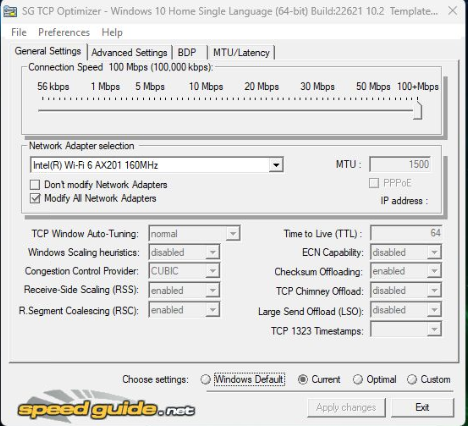
¶ ⚙️ General Settings Tab
Set the following parameters:
Connection Speed: 100 Mbps (or match your upload speed if lower)
Network Adapter: Choose your active adapter (Wi-Fi or Ethernet)
TCP Window Auto-Tuning: normal
Congestion Control Provider: CUBIC (optimized for long-distance, high-latency links)
Receive-Side Scaling (RSS): enabled
RSC (Receive Segment Coalescing): enabled
ECN Capability: disabled
Checksum Offloading: disabled
TCP Chimney Offload: disabled
Large Send Offload (LSO): disabled
➡️ Set "Choose Settings" to "Optimal" and click "Apply Changes".
¶ ⚙️ Advanced Settings Tab
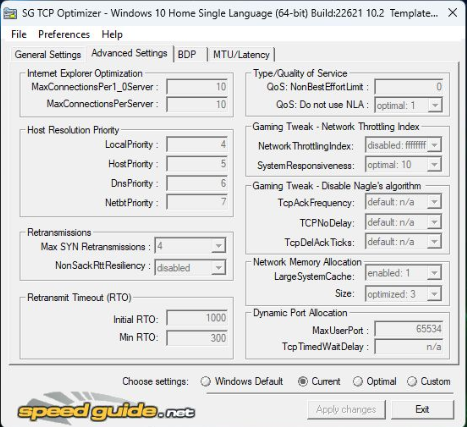
Key tweaks to improve responsiveness for real-time streaming:
MaxConnectionsPer1_0Server: 10
MaxConnectionsPerServer: 10
Host Resolution Priority:
LocalPriority: 5
HostPriority: 6
DnsPriority: 7
NetbtPriority: 8
Max SYN Retransmissions: 2
NonSackRttResiliency: disabled
Initial RTO: 1000, Min RTO: 300
QoS NonBestEffortLimit: 0
QoS Do not use NLA: enabled
Gaming Tweaks:
Network Throttling Index: ffffffff
System Responsiveness: 10
TcpAckFrequency: 1
TCPNoDelay: 1
MaxUserPort: 65534
TcpTimedWaitDelay: 30
¶ 2️⃣ Benchmarking with TwitchTest
¶ 📥 Installation
Download from:
➡️ /twitchtest-2.0.zip
¶ ▶️ Usage
Once downloaded, run the twitch test tool
- input your stream key from twitch
- select test duration for 30 sec
- change the send buffer option to OBS Optimized
- tick only europe servers
- click test
anything with a quality check of 90-100 is good
¶ 3️⃣ Final Notes & Tips
Reboot your PC after applying TCP Optimizer settings.
Avoid Wi-Fi for streaming if possible — Ethernet is strongly preferred.
Re-run TwitchTest monthly to monitor routing changes or Twitch server quality updates.
When using OBS, keep your bitrate slightly below TwitchTest’s maximum result for the chosen server.